
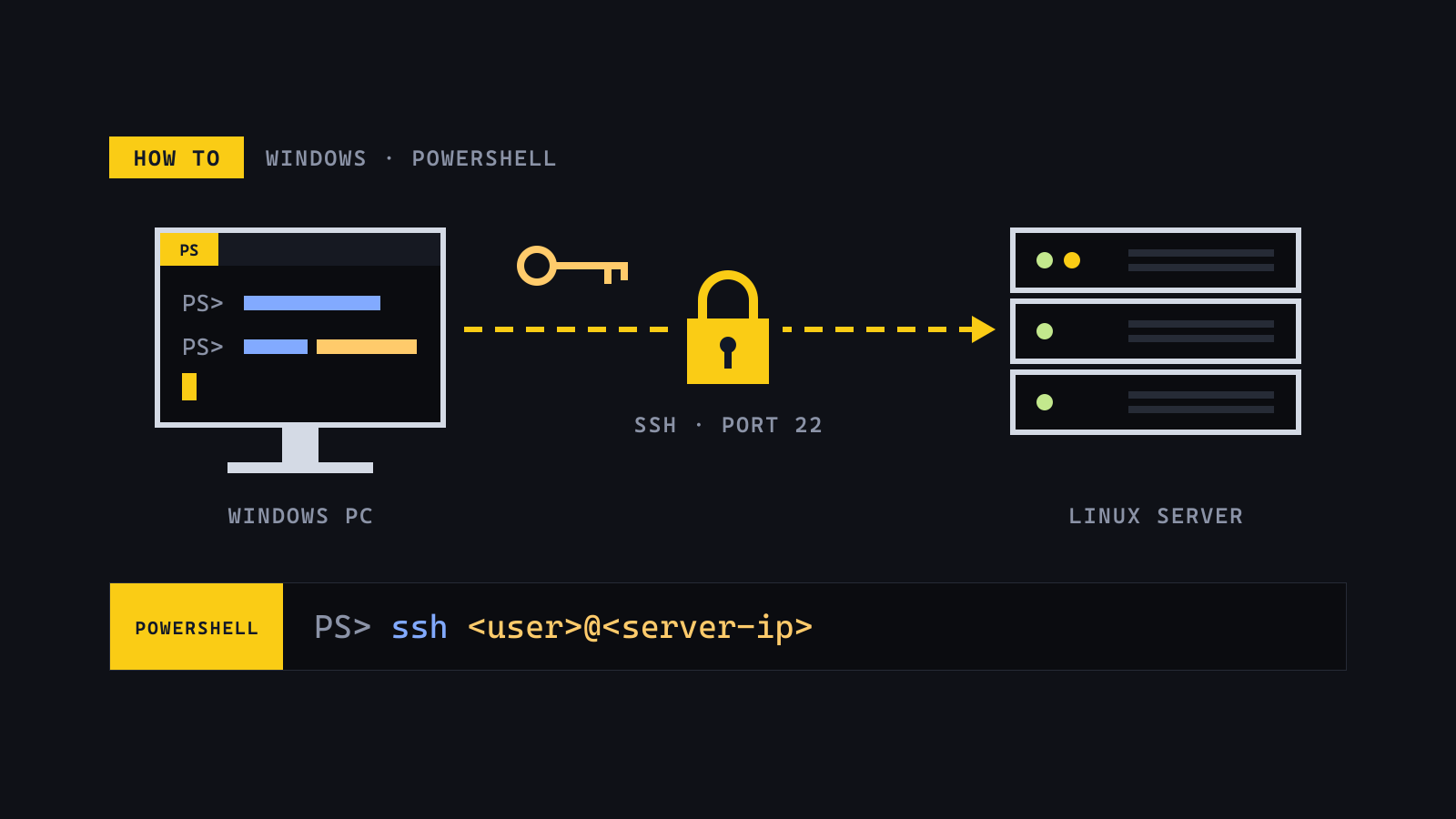
Secure Shell (SSH) gives an encrypted connection to a server. With SSH, you type commands on the server from PowerShell on your Windows computer. This guide shows how to connect with a password, and then with a key.
Before you start
You need these items from your hosting provider:
- The IP address of the server
- The name and the password of a user account on the server
Use PowerShell on your Windows computer for all the steps. Do not use Command Prompt or Git Bash. The commands in this guide operate only in PowerShell. Push Enter after each command.
Text in angle brackets, for example <user>, is a placeholder. Replace all of it with your own value, also the < and > characters. This guide uses these placeholders:
<user>: the name of the user account<server-ip>: the IP address of the server<server-name>: the name of the server, as the prompt on the server shows it<label>: a name for your computer and the date, for examplelaptop-2026-11<your-name>: your user name on Windows, as PowerShell shows it
Know where your commands operate
When you connect to the server, the PowerShell window shows the shell of the server. The commands that you type then operate on the server, not on your computer. Look at the prompt before you type a command:
| The prompt starts with | The command operates on |
|---|---|
PS C:\ |
Your computer |
<user>@<server-name>:~$ or root@<server-name>:~# |
The server |
Caption: How to know where a command operates
To go back from the server to your computer, type exit.
Check that the SSH client is installed
- Open PowerShell.
- Type this command:
ssh -V
If the SSH client is installed, PowerShell shows a version number, for example:
OpenSSH_for_Windows_9.5p2, LibreSSL 3.8.2
If PowerShell shows The term 'ssh' is not recognized, the SSH client is not installed. Install the optional feature OpenSSH Client in Windows Settings, then do this step again.
Connect with a password
- Type this command:
ssh <user>@<server-ip>
- At the first connection, SSH shows the fingerprint of the server and asks
Are you sure you want to continue connecting (yes/no/[fingerprint])? - Compare the fingerprint with the fingerprint from your hosting provider. If they are the same, type
yes. Type the full word, noty.
CAUTION: Do not type
yesif the fingerprints are different. A different fingerprint can show that another computer is between you and the server.
- Type the password of the user account. PowerShell does not show the characters that you type. This is normal.
- Look at the prompt. It now shows the name of the server. The commands that you type now operate on the server.
- To disconnect, type
exit. The prompt starts withPS C:\again.
Make a key pair
Make the key pair on your computer, not on the server.
- Make sure that the prompt starts with
PS C:\. If the prompt shows the name of the server, typeexit. - Type this command:
ssh-keygen -t ed25519 -C "<label>"
The label goes at the end of the public key. On the server, it shows which key belongs to which computer. Do not put private data in the label.
- SSH asks
Enter file in which to save the key. Push Enter. Do not type a file name or a path.
CAUTION: If you type a file name or a path, SSH saves the key in a different location. The commands in this guide then cannot find the key.
- If SSH asks
Overwrite (y/n)?, you already have a key with this name. Typento keep the key that you have. If you overwrite it, you cannot use the old key to connect to your servers. - Type a passphrase of 4 to 6 random words. PowerShell does not show the characters. Type the same passphrase again. Keep the passphrase in a password manager. If you forget it, you cannot recover it, and you must make a new key pair.
- Make sure that the output shows
Your identification has been saved in C:\Users\<your-name>/.ssh/id_ed25519. If the output shows/root/or/home/, you made the key on the server. Typeexit, then do this section again.
The key pair has two files:
| File | What it is | Where it goes |
|---|---|---|
id_ed25519 |
Private key | Only on your computer |
id_ed25519.pub |
Public key | On each server |
Caption: The two files of the key pair
CAUTION: Do not give the private key to a person or copy it to a server. A person with this key can connect to all of your servers.
Copy the public key to the server
This command adds your public key to the file ~/.ssh/authorized_keys on the server. tr -d '\r' removes the Windows line ending that PowerShell adds to the key.
- Make sure that the prompt starts with
PS C:\. - Type this command on one line:
Get-Content $env:USERPROFILE\.ssh\id_ed25519.pub | ssh <user>@<server-ip> "mkdir -p ~/.ssh && chmod 700 ~/.ssh && tr -d '\r' >> ~/.ssh/authorized_keys && chmod 600 ~/.ssh/authorized_keys"
- Type the password of the user account. Do not type the passphrase of the key.
If the command shows no error, the public key is on the server. The command does not show a message when it is successful.
Connect with the key
- Type this command:
ssh <user>@<server-ip>
- SSH asks
Enter passphrase for key. Type the passphrase of the key.
If SSH asks for the password of the user account, the server does not have your public key. Do the steps in Copy the public key to the server again.